This tutorial will guide you through the process of integrating AI Funnels with GHL.
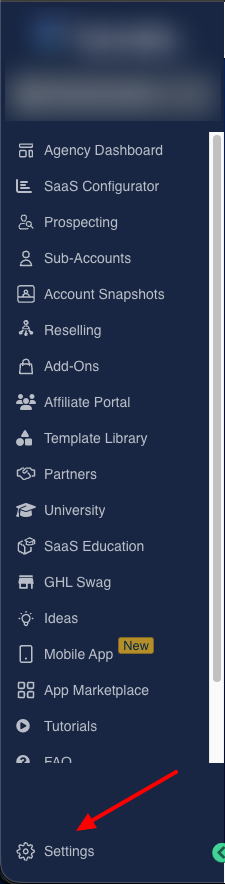
Step 1: Navigate to Settings
First, log in to your account. On the left-hand sidebar, scroll down and click on
Settings.
Step 2: Access Custom Menu Links
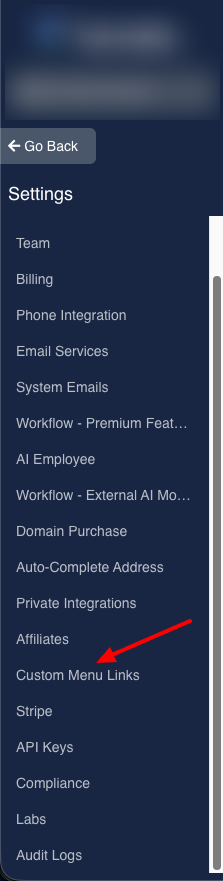
Within the Settings menu, find and click on
Custom Menu Links.
Step 3: Create a New Link
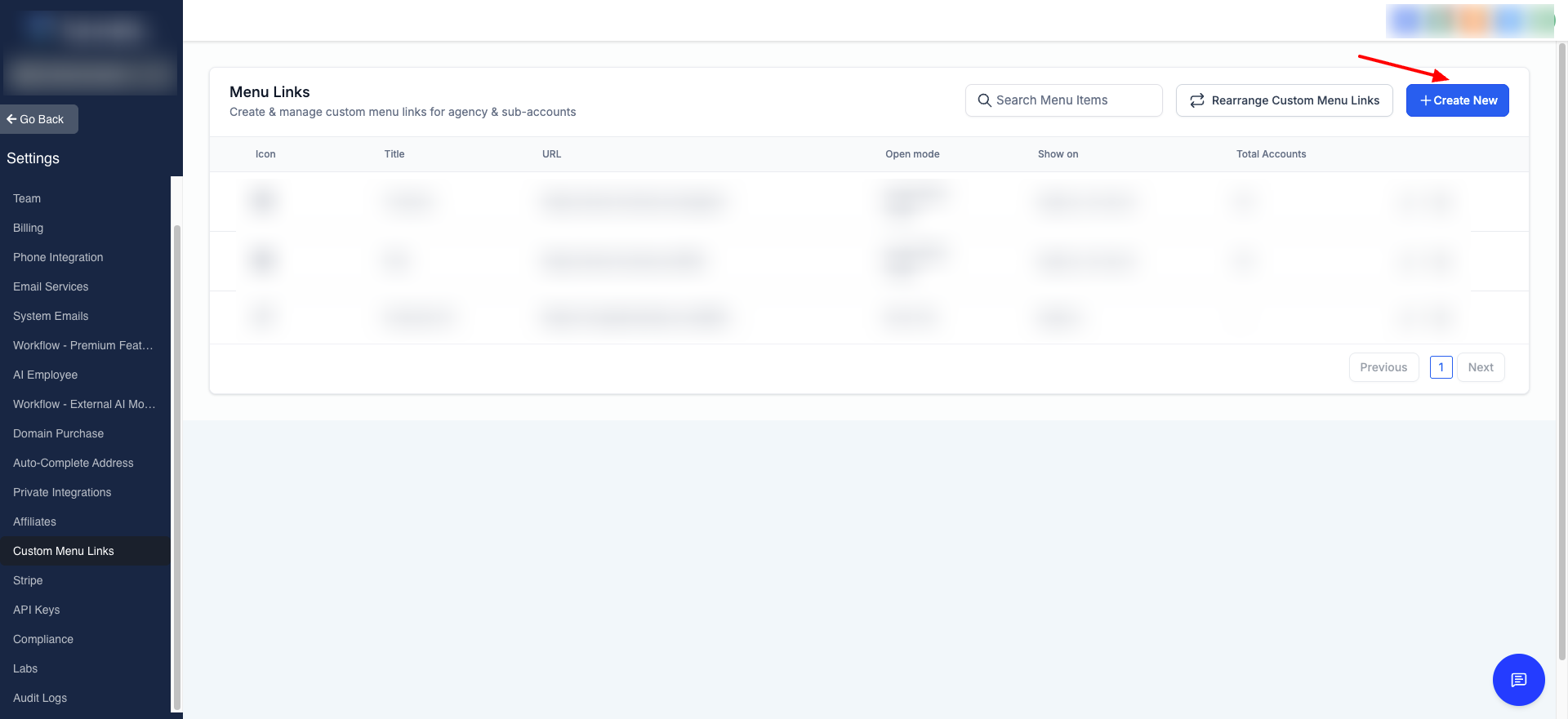
On the
Menu Links page, click the
+ Create New button in the top right corner.
Step 4: Fill Out the Custom Link Details
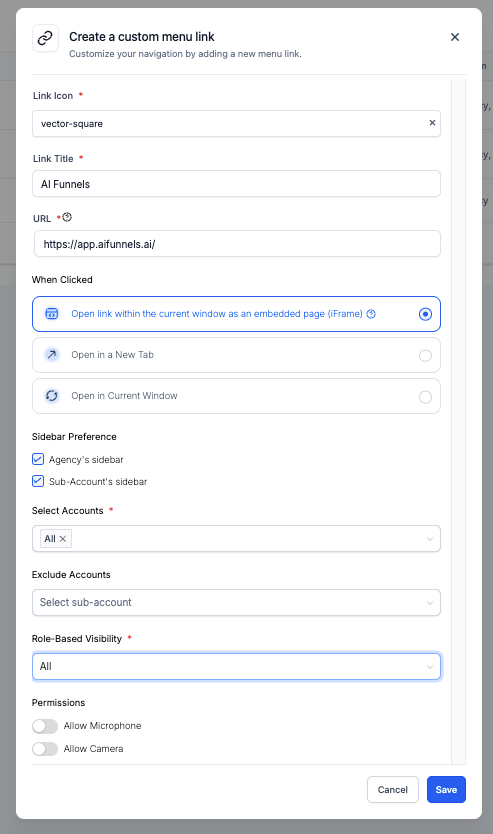
A modal window titled "Create a custom menu link" will appear. You will need to fill in the following information:
- Link Icon: Choose an icon for your new menu item.
- Link Title: Enter the name you want to appear on the sidebar (e.g., "AI Funnels").
- URL: Paste the URL of your AI Funnels custom domain.
- When Clicked: Select "Open link within the current window as an embedded page (iFrame)".
- Sidebar Preference: Check all
- Select Accounts: Select "All"
- Role-Based Visibility: Select "All"
- Permissions: Leave them unchecked.
Once you have configured all the settings, click
Save.
Step 6: Get your link
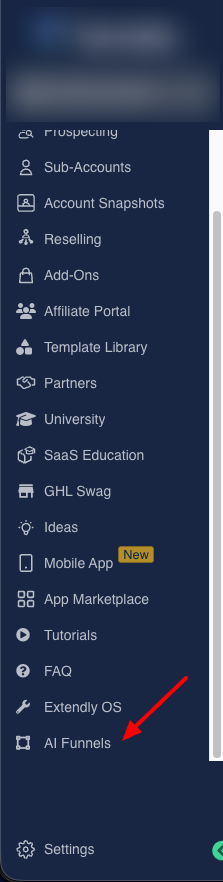
After saving, the new link will appear in your sidebar. Go back to your dashboard, and you will see the new custom menu item. Click on it to ensure it works correctly and that the URL and display settings are as you intended.

Did this answer your question?
😞
😐
😃